Help
Talkey user guide
Talkey encrypts your e-mails so that only the recipient can read them. It does not replace your mail program – it connects to it and adds a layer of encryption. An encrypted message travels through ordinary e-mail as a Talkey.mtm attachment, and the recipient opens it in their Talkey app.
Contents
- First launch
- Unlocking the app
- Opening an encrypted message
- Writing and sending a message
- Advanced message settings
- TLP classification
- Folders, search and deleting
- Keys
- Mailboxes
- Settings
- FAQ
Moving from the original version of Talkey? See Moving to the new version. Changes by version: What’s new.
How Talkey works with your mail
- Talkey does not download your mail. Encrypted messages arrive in your regular mailbox as a Talkey.mtm attachment. You open them from your mail and Talkey keeps them.
- The Inbox is therefore a list of the messages you have opened in Talkey. They stay there, encrypted, until you delete them.
- On a new device the Inbox is empty until you open the older attachments again. With the same key, old messages open too.
First launch
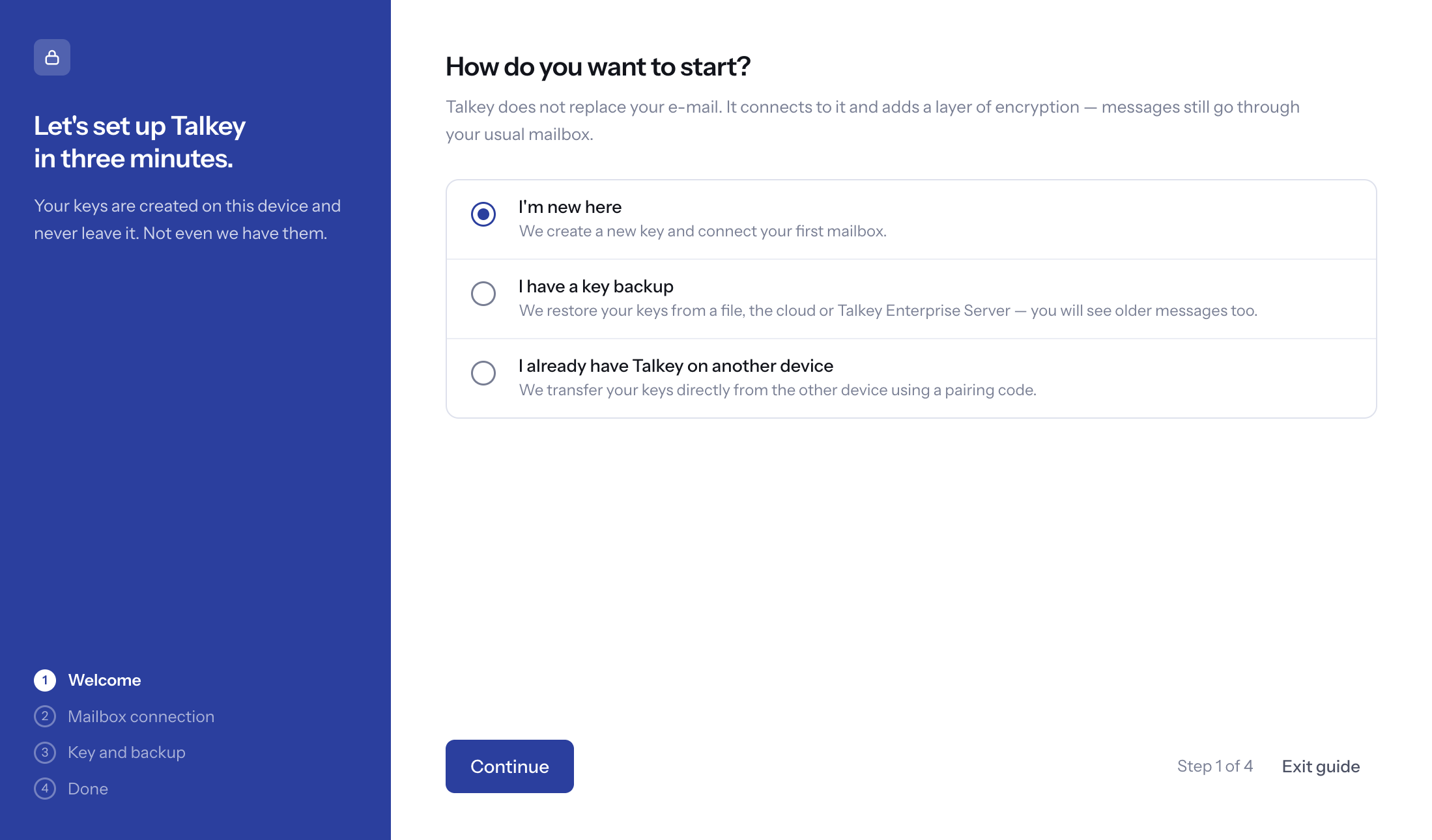
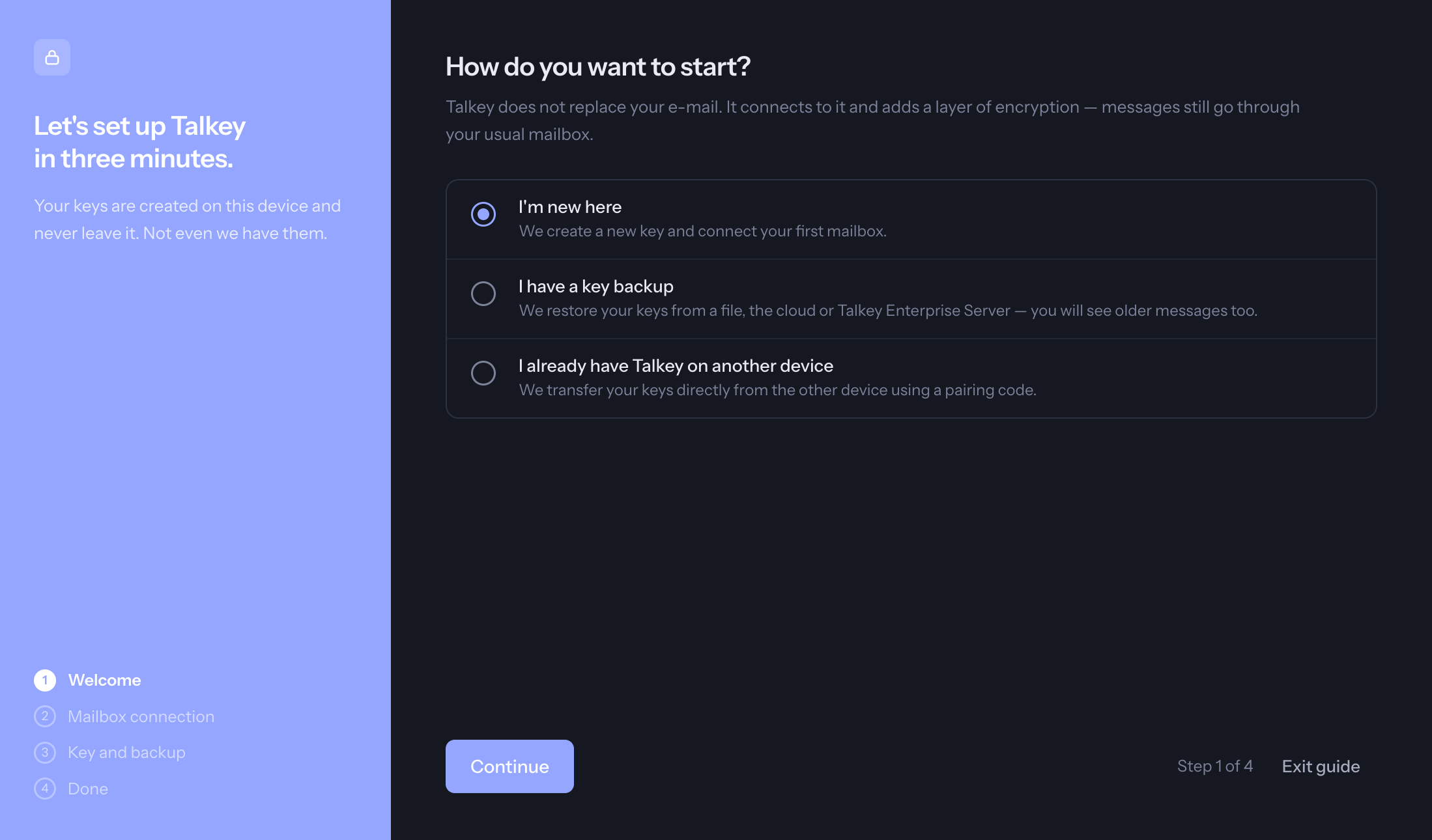
On the first launch a wizard guides you. On How would you like to start? choose one of three options:
- This is my first time here – you create a new key.
- I have a key backup – you restore the key from a .bac file or from Talkey Enterprise Server.
- I already have Talkey on another device – you transfer the key from the other device with a code.
The wizard always has four steps: the choice, the key, connecting a mailbox and a summary.
A new key
- Enter the e-mail address you are creating the key for.
- Set your Talkey password – at least 10 characters. You will unlock the app with it, and it also protects the backup of your key. It stays only on your device; if you forget it, a key without a backup cannot be restored.
- You will receive an e-mail with a link – tap it to activate the key. The wizard waits.
- Back up the key. Choose To a file (a .bac file protected by your Talkey password; you can save it to iCloud Drive or OneDrive too), or To Talkey Enterprise Server if your company uses it. Without a backup the key cannot be restored if you lose the device, and the messages received so far stay unreadable.
Connecting a mailbox
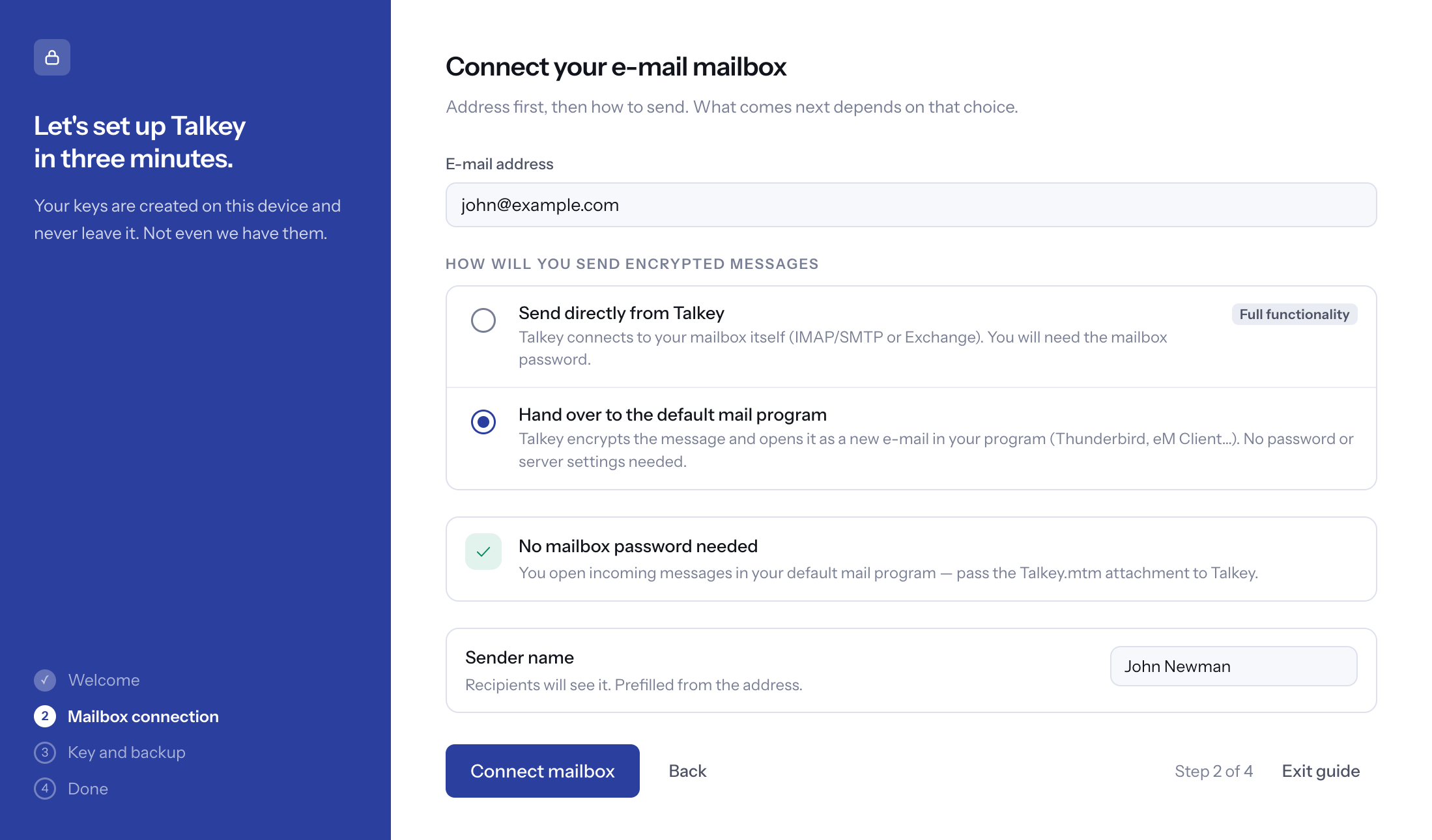
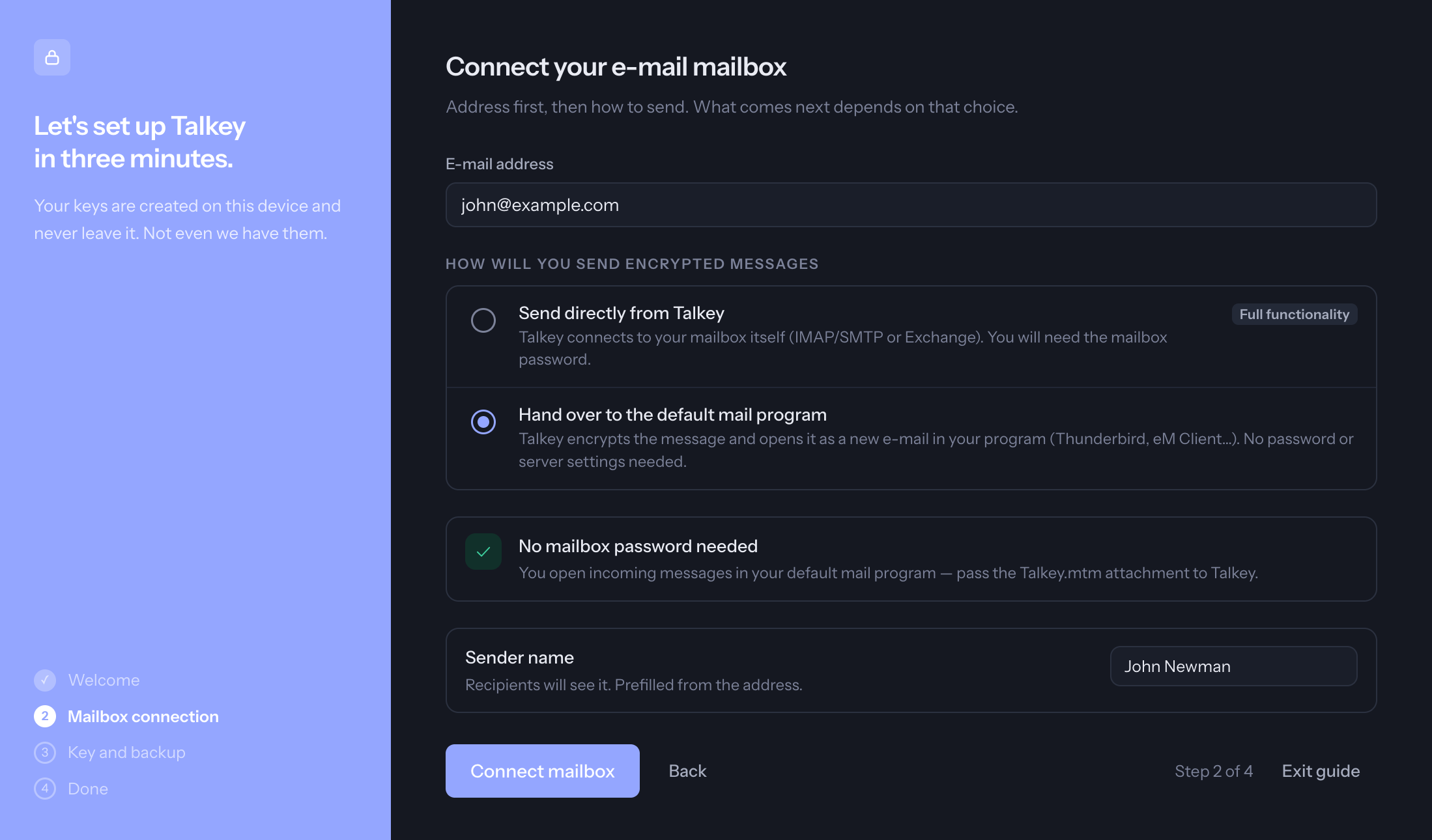
Talkey asks what will send the encrypted messages:
- Hand off to the default mail program (or to your mail app) – Talkey encrypts the message and hands it over to the program you already use (the default mail program on Windows, Apple Mail or Microsoft Outlook on Mac, the Mail app on iPhone, any app via sharing on Android). You send it from there. No mailbox password is needed.
- Send directly from Talkey – Talkey sends through your mail server itself. You enter the mailbox password; the servers are usually detected automatically, otherwise you enter them manually (IMAP/SMTP or Exchange). Gmail is connected by signing in with Google.
Finally check the Sender name – recipients will see it.
Unlocking the app
- Talkey is unlocked with your app password. Under Settings → Security you can turn on Sign in with biometrics (fingerprint, Face ID, Windows Hello).
- After the set period of inactivity the app signs out on its own (Sign out in the background).
- Warning: after five wrong passwords the keys are deleted from the device. The app shows the number of attempts left before that. You then restore the key from a backup.
- On a computer, closing the window with the X does not quit Talkey by default – it keeps running in the background (in the notification area on Windows, in the Dock on Mac). It stays signed in, so a Talkey.mtm attachment opens without the password. You can change this under Settings → Security (Closing the window with the X).
Opening an encrypted message
- In your mail, open the Talkey.mtm attachment:
- Computer: double-click the attachment, or drag the attachment (or the whole message from Outlook or Apple Mail) onto the Talkey window.
- iPhone, Android: tap the attachment and choose Open in Talkey (or share it to Talkey). You can also open a saved attachment inside Talkey: tap the folder name at the top and choose Open .mtm file.
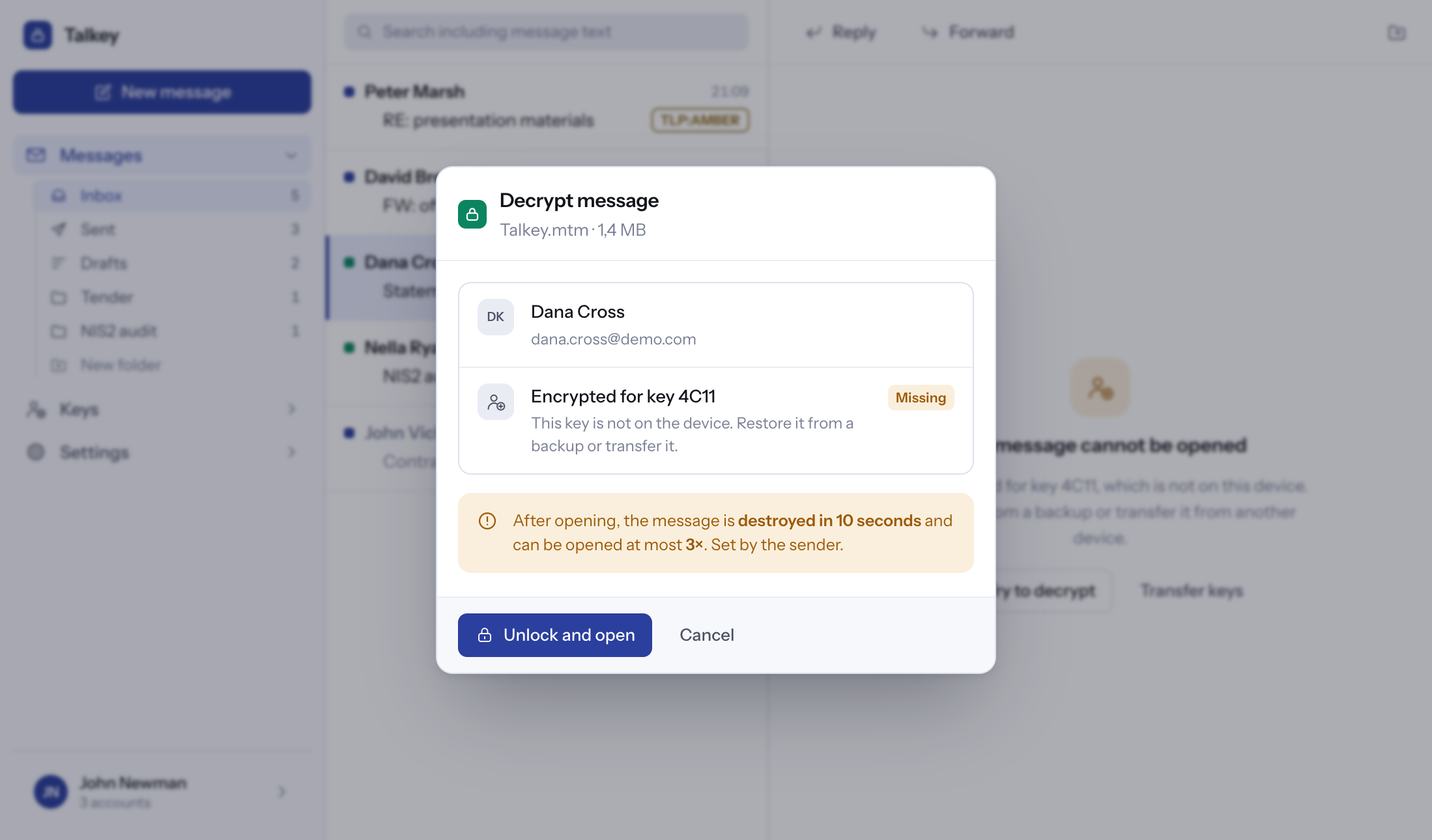
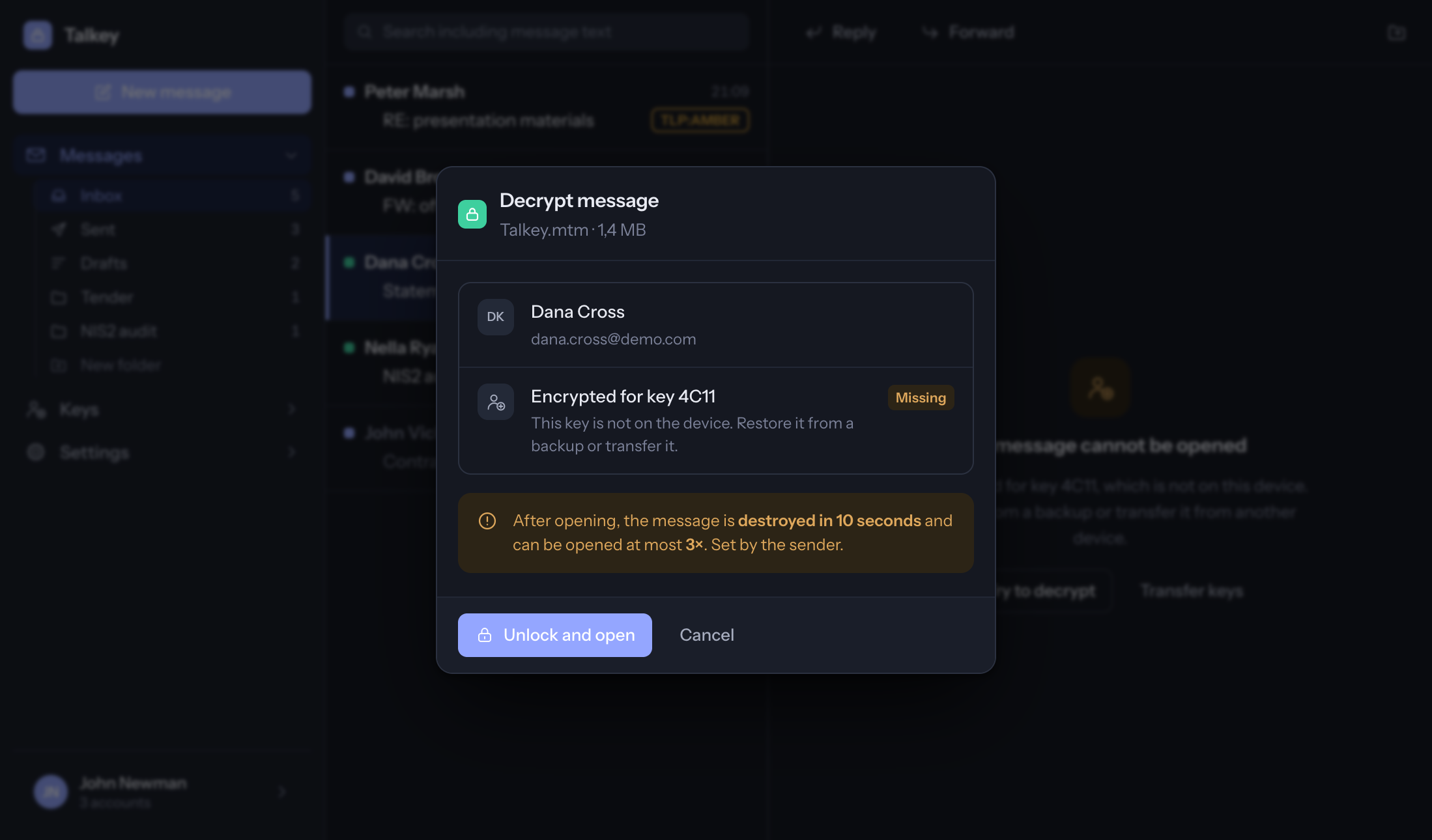
- The Decrypt message panel shows the keys the message is encrypted for. Confirm with Unlock and open.
- The message opens and is saved to the Inbox.
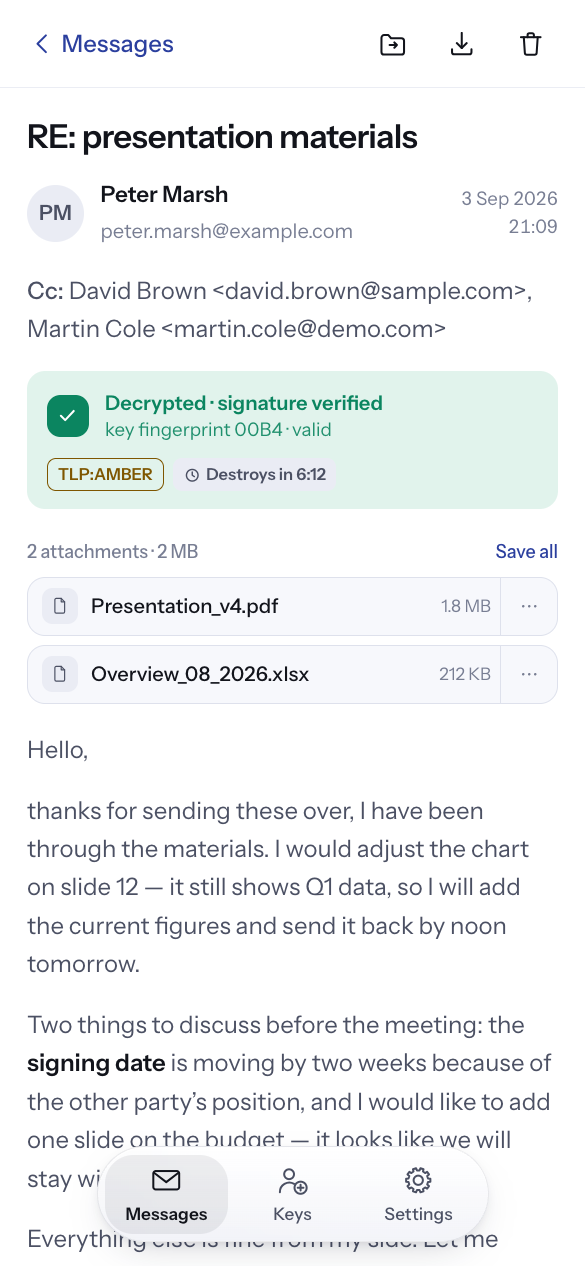
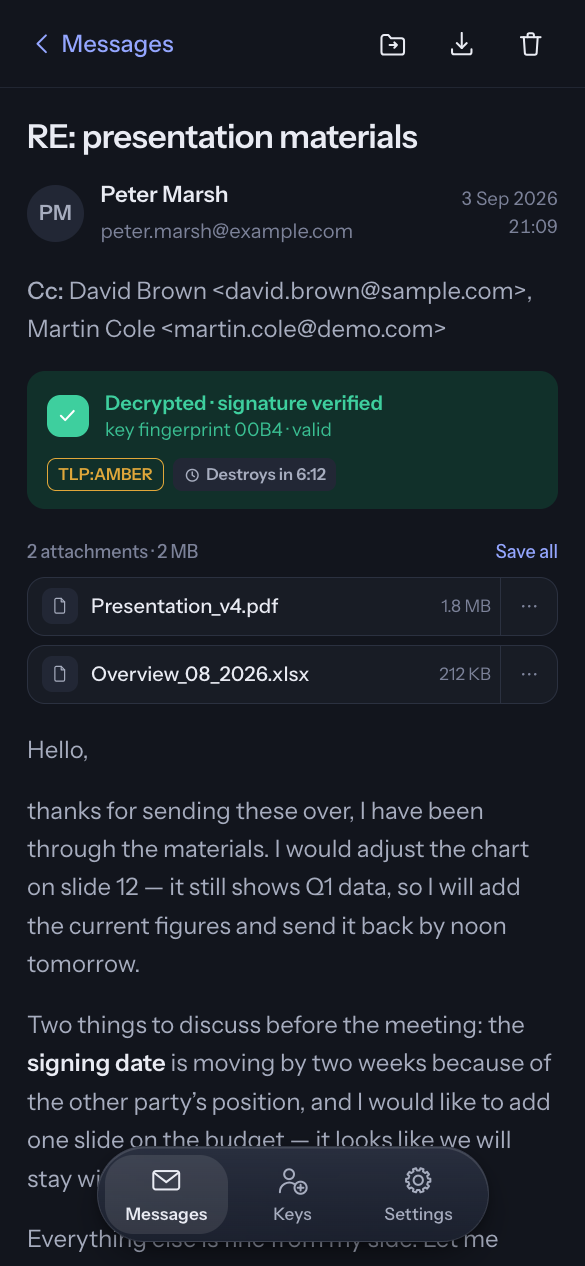
What you see with a message
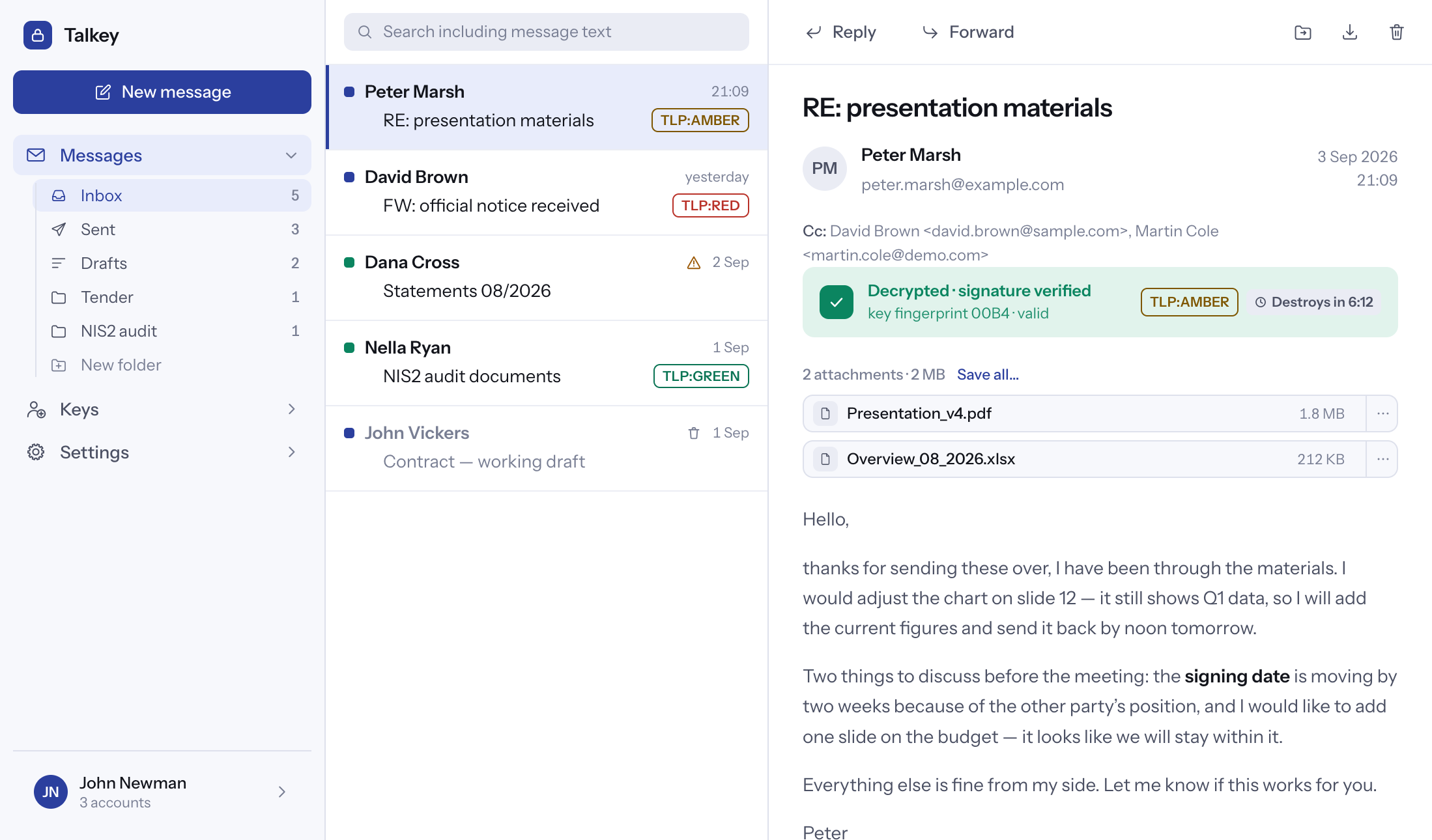
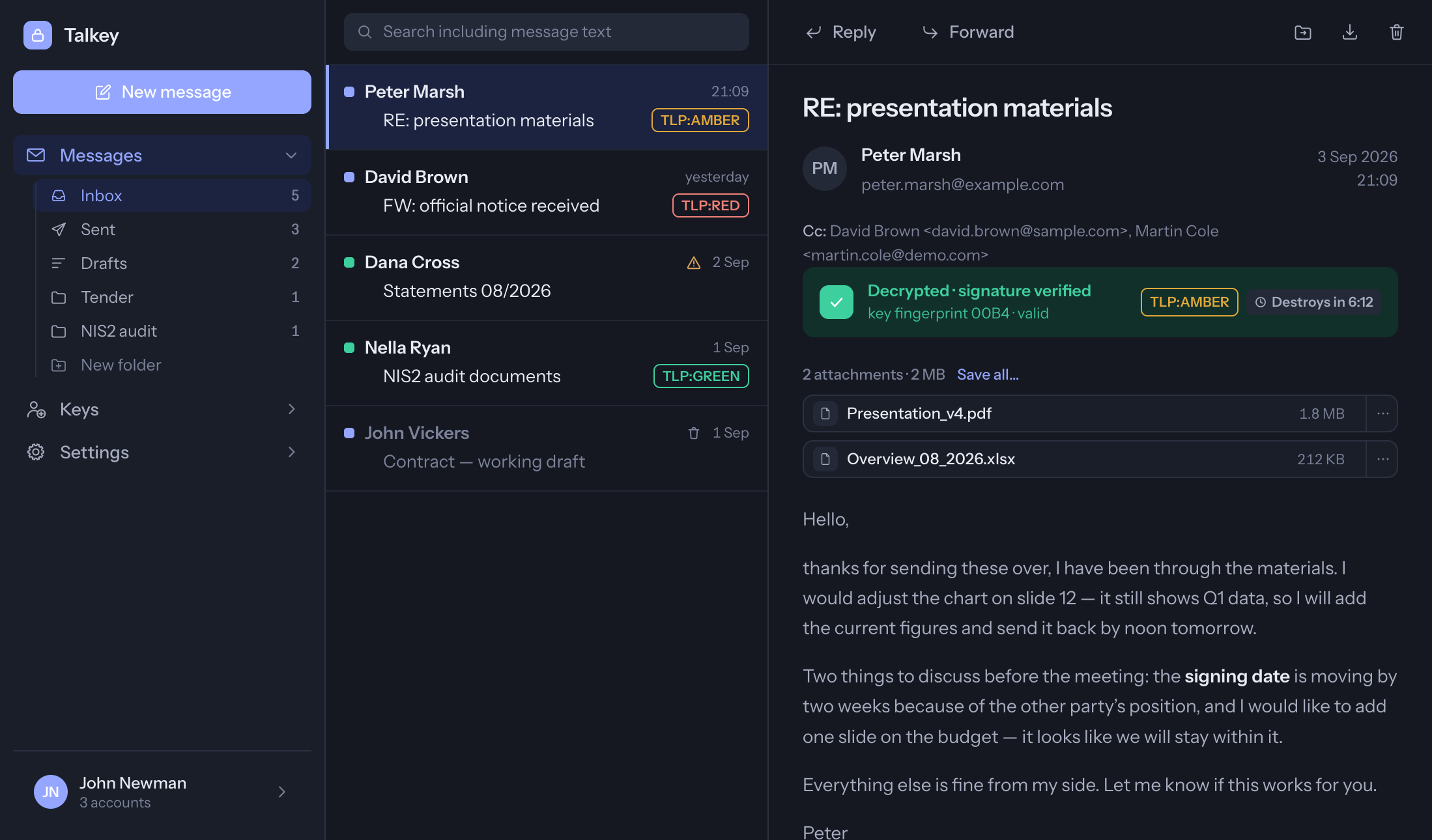
- The security bar above the text, e.g. Decrypted · signature verified, with the sender's address and the beginning of their key fingerprint. Tap it to see the whole fingerprint – you can compare it with the sender (see Key fingerprint).
- Attachments above the message text. On a computer double-click an attachment to open it, on a phone tap it. The “…” menu offers Save decrypted, Save all attachments and Copy name. A saved attachment is no longer protected.
- A TLP label if the sender classified the message, and a Destroy in … countdown if they set destruction after viewing.
On a computer the message is read in the right-hand pane; double-click a message in the list to open it in a separate window.
When a message can't be opened
- The message can't be opened – it is encrypted for a key that is not on this device. Restore it from a backup or transfer it from another device (buttons right at the message).
- The message can't be opened now – the sender allowed opening only within a certain time range. Try again within that time.
- No openings left or The message was destroyed – the content can no longer be shown.
A message that can't be opened yet is saved to the Inbox so you can come back to it.
Writing and sending a message
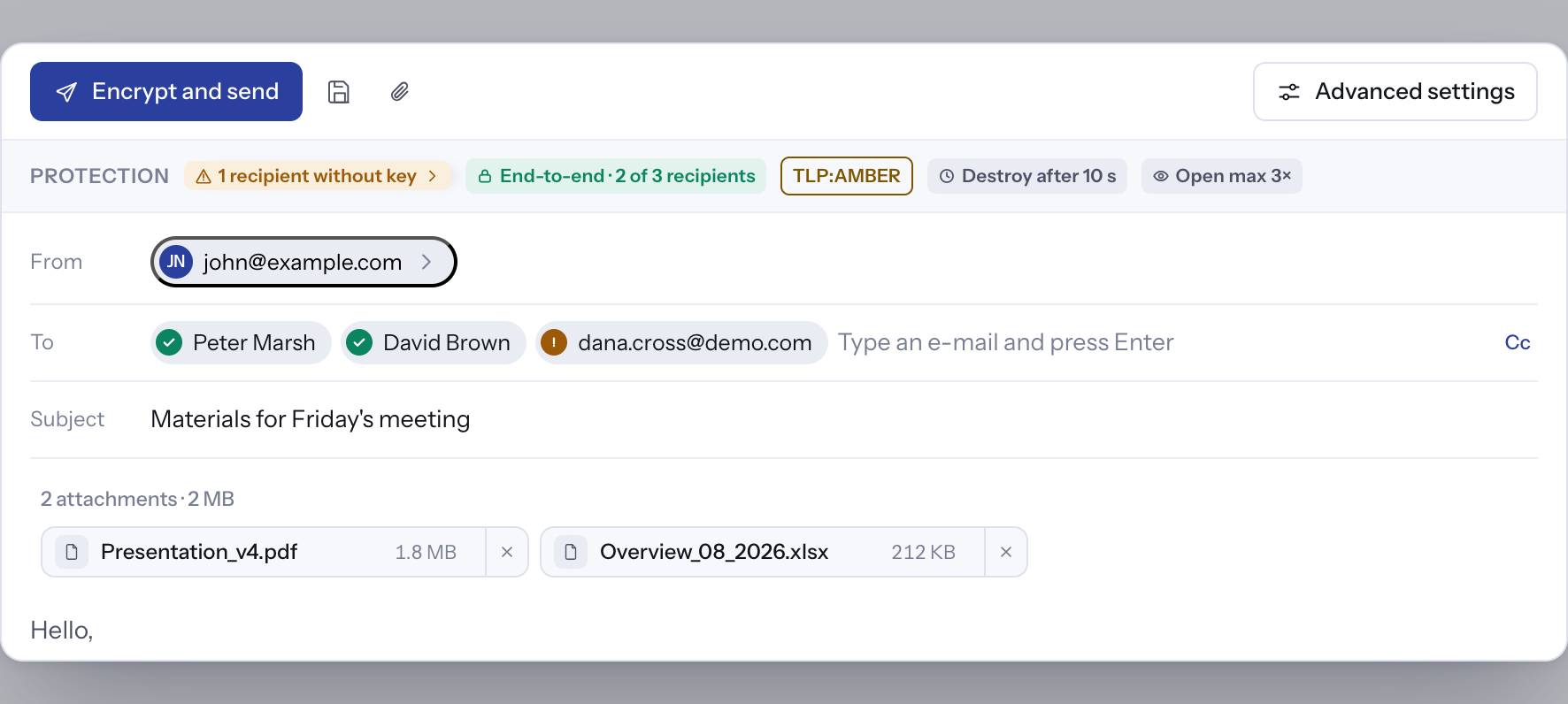
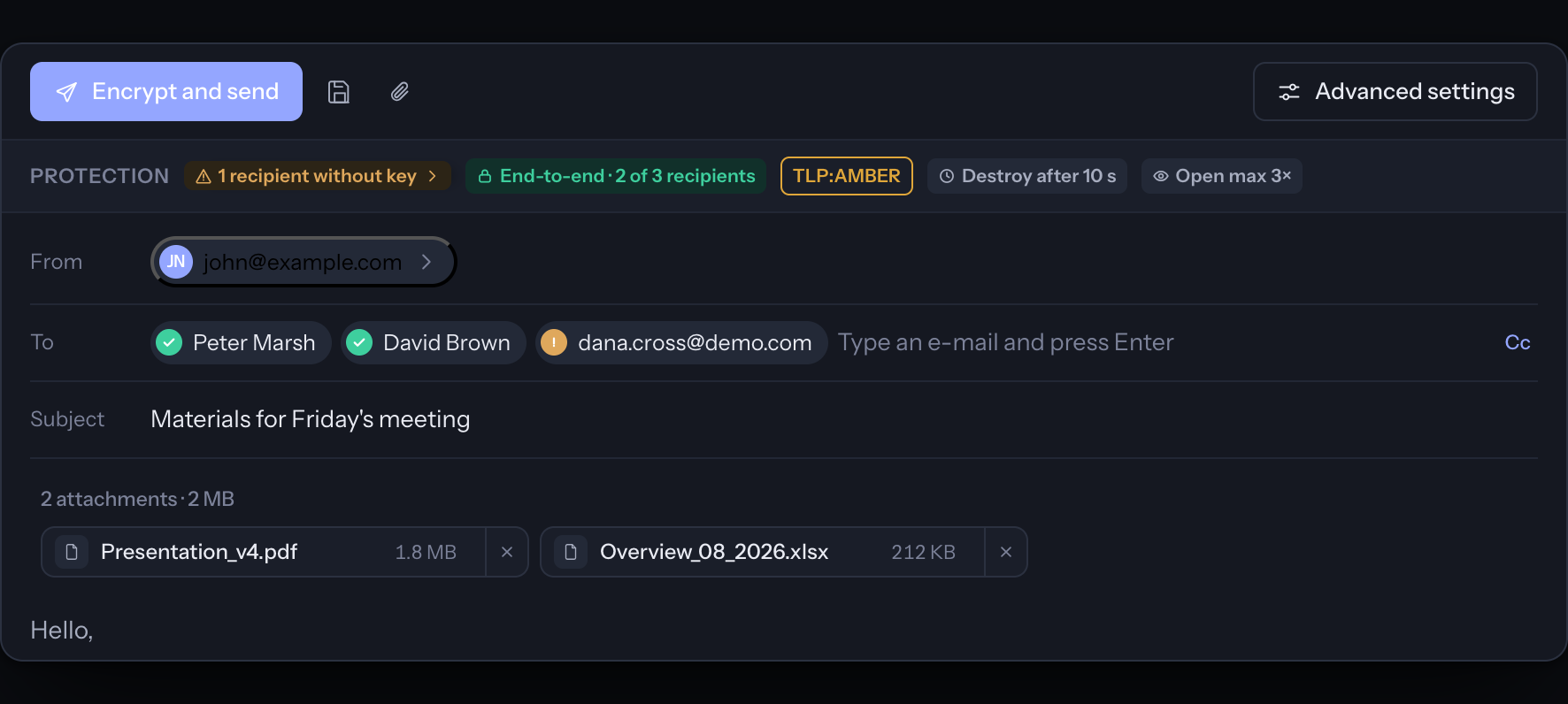
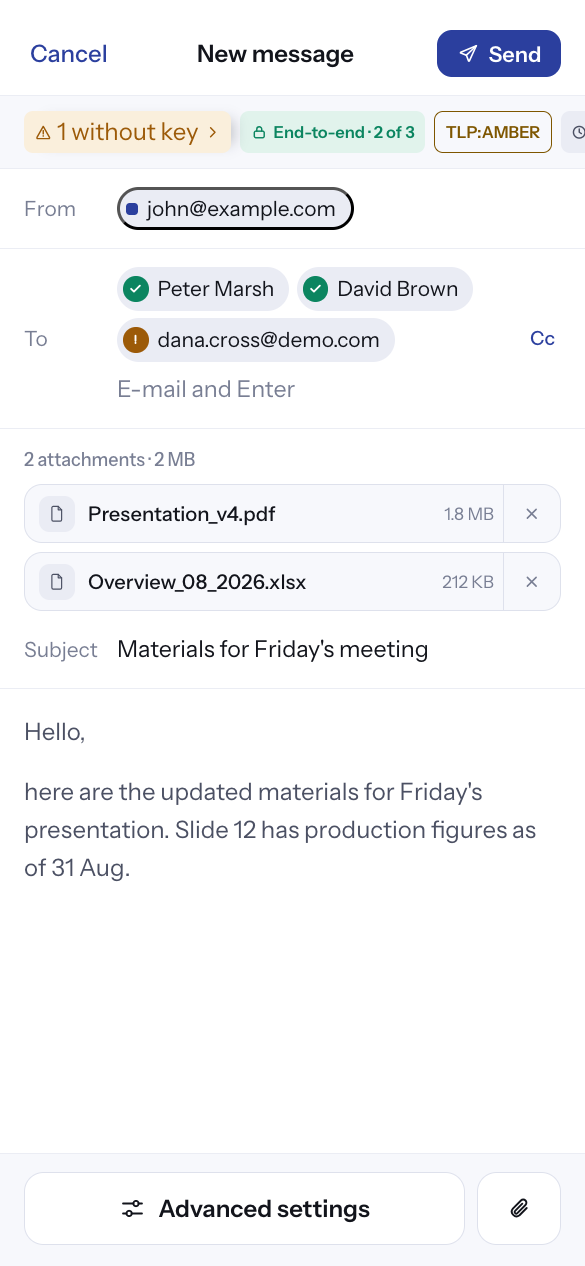
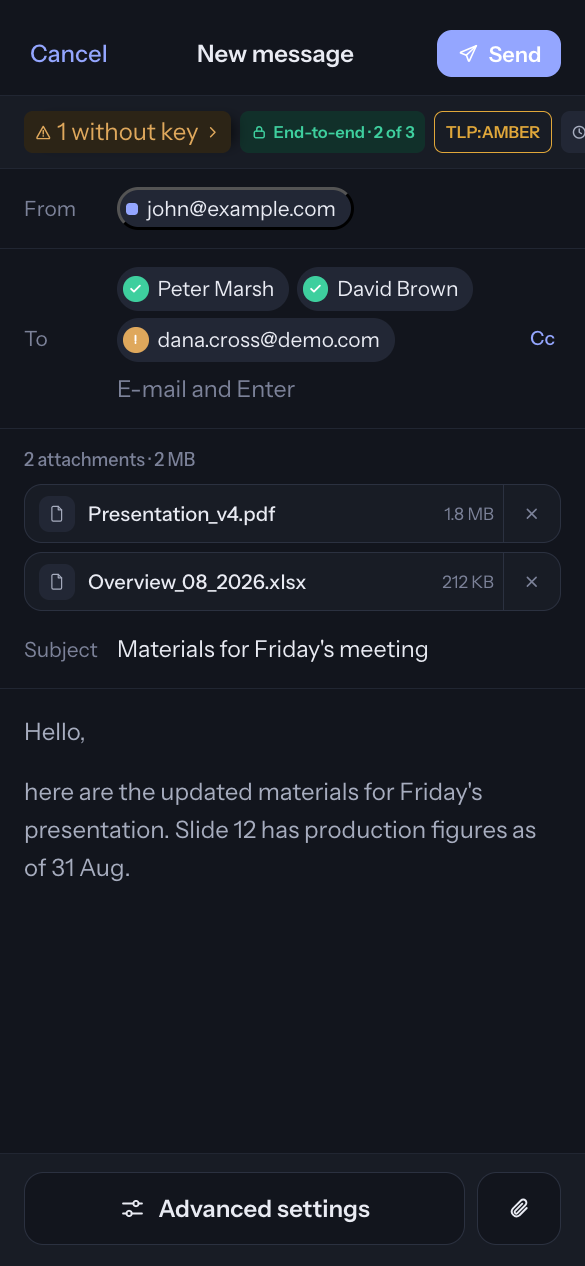
- Tap New email (on a computer also Ctrl+N, on Mac ⌘N; on a phone the + button). On a computer a separate window opens.
- Type an address into To and press Enter. Each recipient has a mark:
- green tick – the recipient has a Talkey key, the message will be encrypted for them,
- orange exclamation mark – the recipient has no key (see Recipients without a key).
- Fill in the Subject and the text. Add attachments with Attach – they are encrypted together with the message.
- The Protection bar above the fields sums up who the message is encrypted for and which rules apply.
- Tap Encrypt and send. If you send through a mail program, the button reads Encrypt and hand off to … and the message opens in that program, where you send it. A copy is always saved to the Sent folder in Talkey.
- More than one mailbox? Tap the From field and choose which one to send from.
- Save draft saves an unfinished message to Drafts. A draft is encrypted for you only.
Recipients without a key
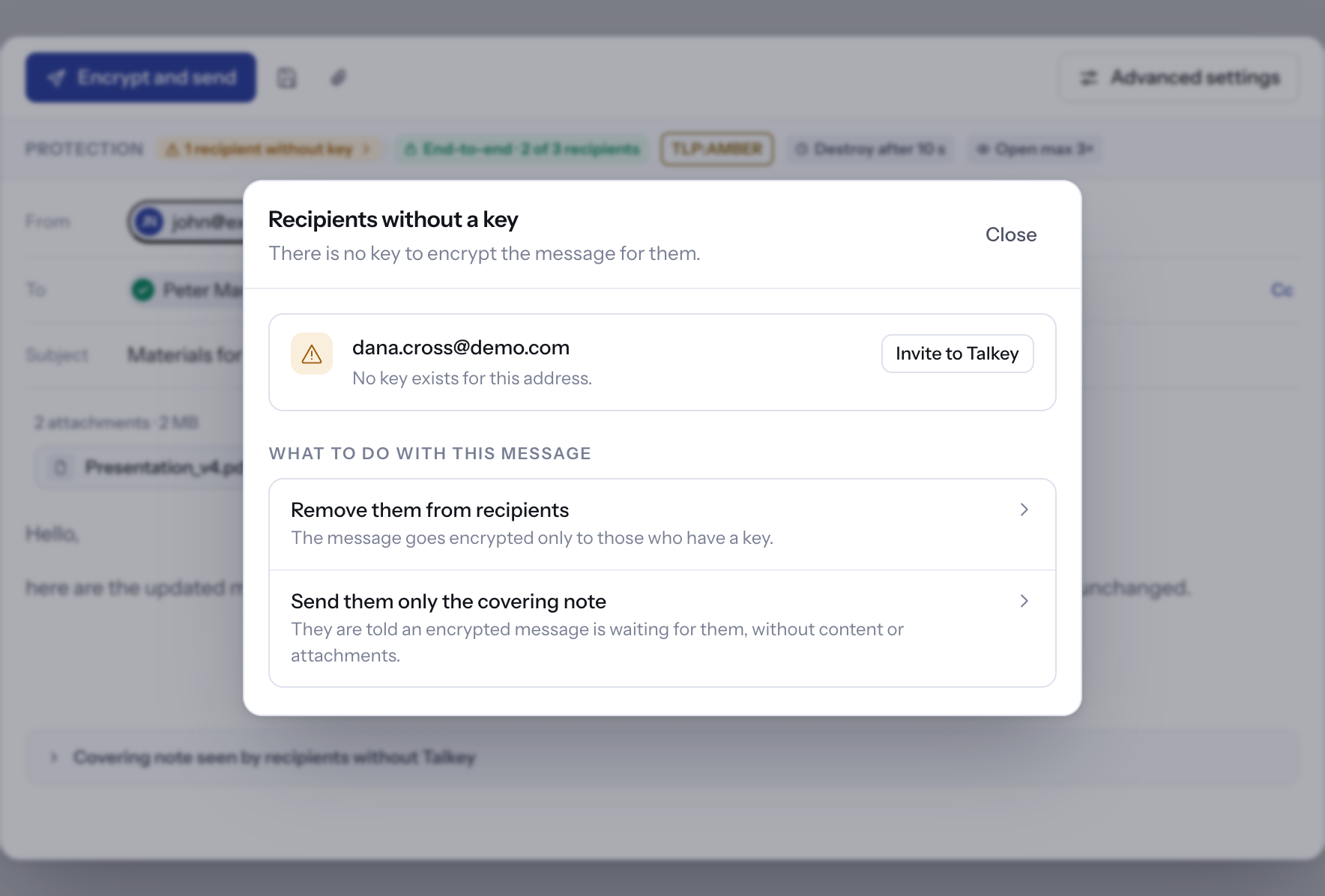
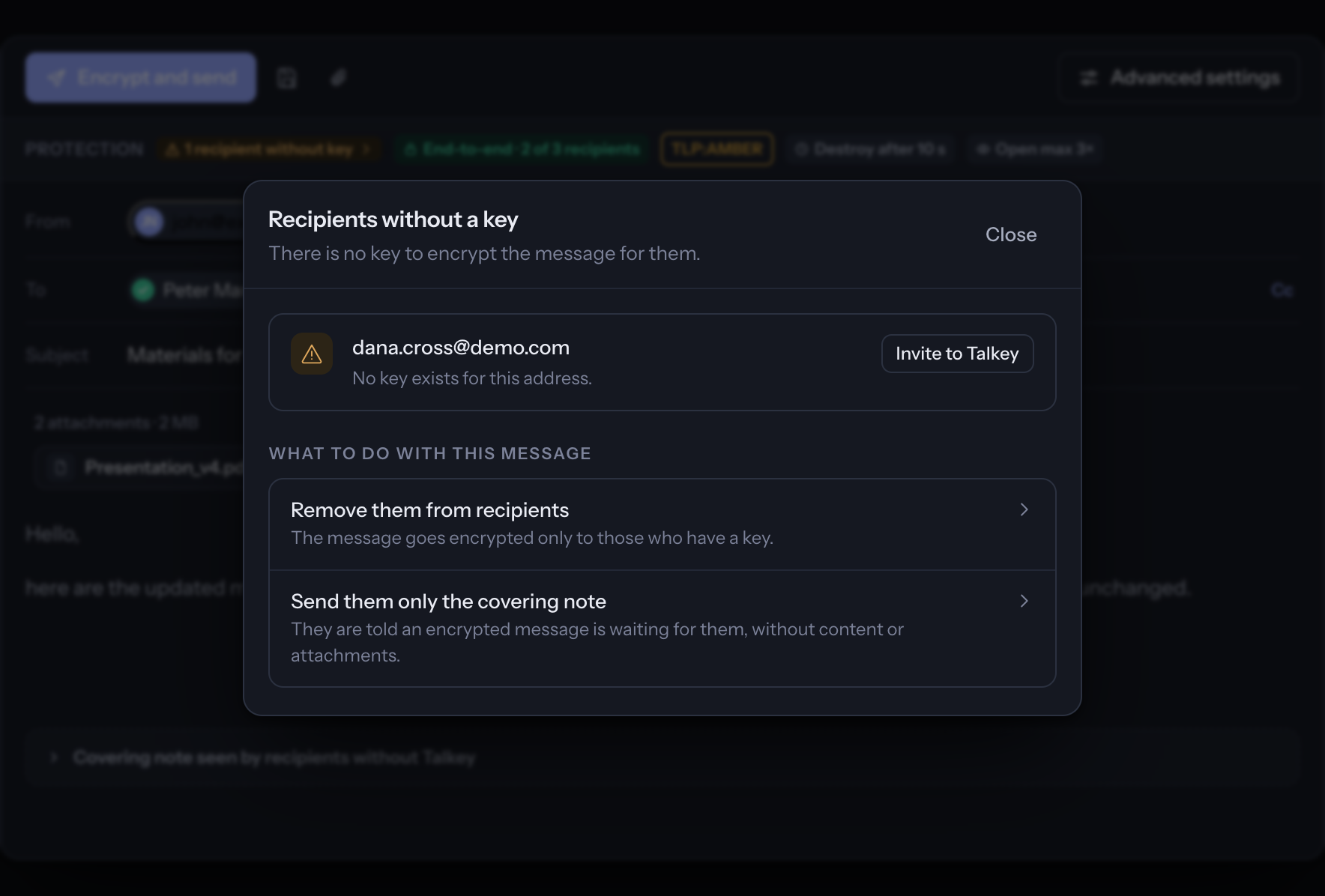
If a recipient has no key, Talkey offers the Recipients without a key panel:
- Invite to Talkey – enter the recipient's phone number. They get the invitation by e-mail and the activation password by text message. The message is then sent and the recipient reads it once they install Talkey and activate the key.
- Remove them from the recipients – the message goes only to those who have a key.
Advanced message settings
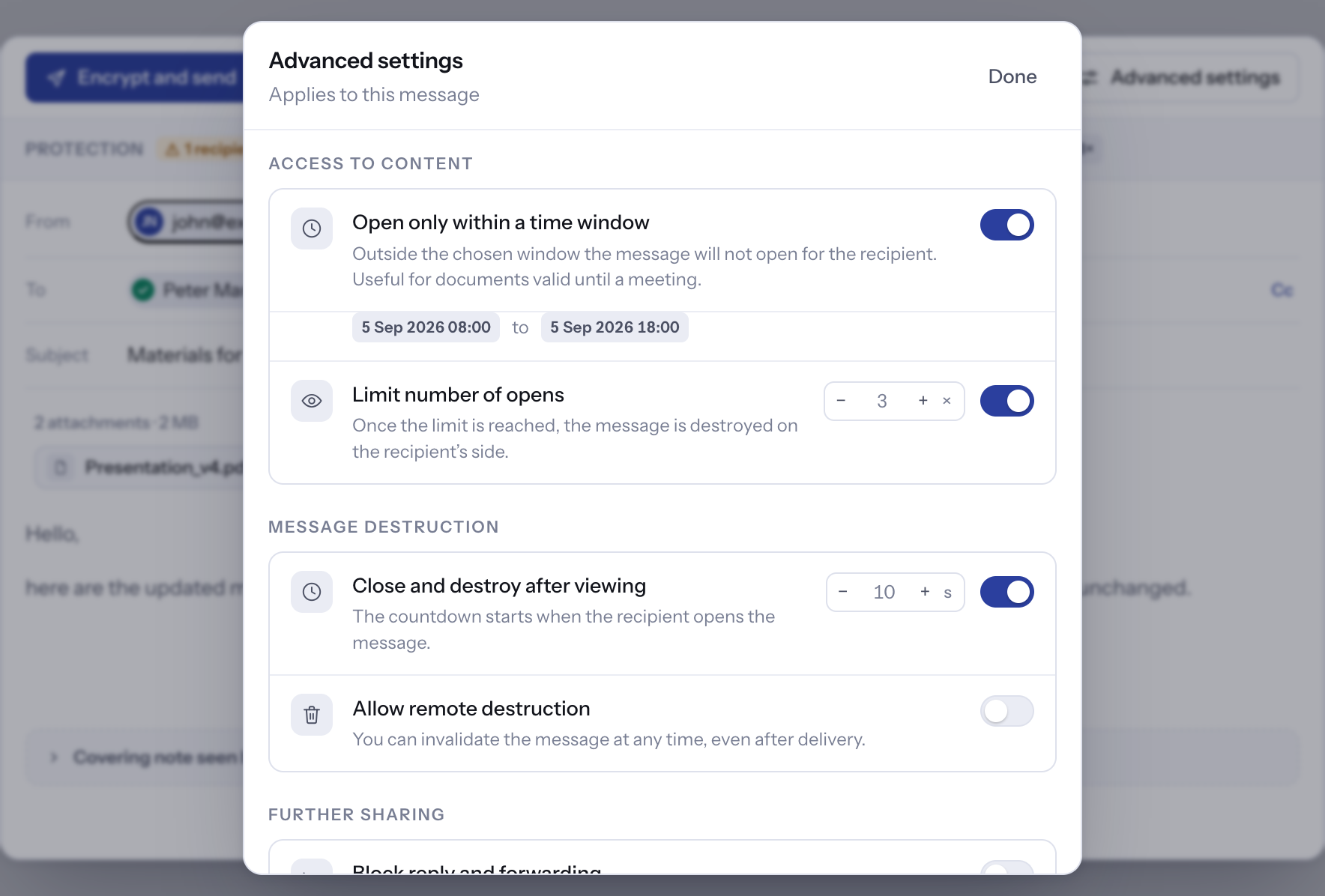
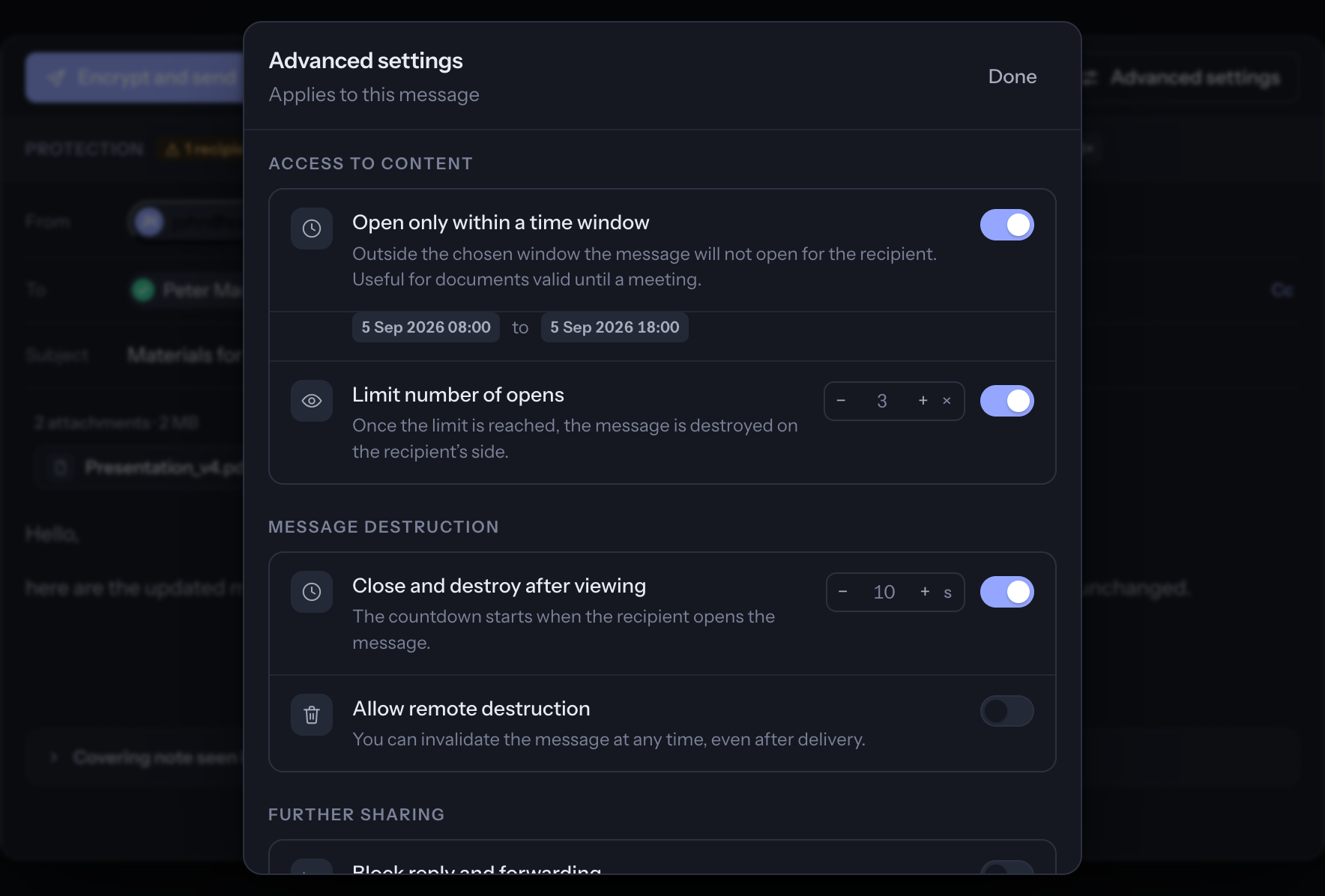
The Advanced settings button in a new message offers rules that apply to this message only. They require an internet connection (for both you and the recipient).
- Open only within a time range – outside the chosen window the message won't open for the recipient.
- Limit the number of openings – once used up, the message is destroyed at the recipient.
- Close and destroy after viewing – the countdown starts when the recipient opens the message.
- Allow remote destruction – you can invalidate the message even after delivery (the bin at the message in the Sent folder → destroy for all recipients).
- Prevent reply and forwarding – the recipient cannot pass it on from Talkey.
- Apply these rules to my copy as well – your copy in Sent behaves the same as the message at the recipient, including destruction.
The rules are enforced by the Talkey app. They cannot stop the recipient from copying the content by hand or taking a photo of it.
TLP classification
The Traffic Light Protocol tells the recipient whom they may pass the information on to. Turn it on under Settings → Security (the Use TLP switch), where you also set the default level. In a new message you then choose the level in Advanced settings.
- TLP:RED – for the recipients only. It cannot be forwarded or replied to all, no copy can be added and recipients cannot be changed in a reply. Talkey also blocks screenshots (Windows, Android).
- TLP:AMBER+STRICT – the recipient's organisation only (need-to-know).
- TLP:AMBER – the recipient's organisation and its partners (need-to-know).
- TLP:GREEN – the recipient's community, not through public channels.
- TLP:CLEAR – no restriction.
With RED and AMBER Talkey warns you when sending outside your organisation; with GREEN when a recipient uses a public e-mail service. A reply to a classified message cannot have a lower level.
Folders, search and deleting
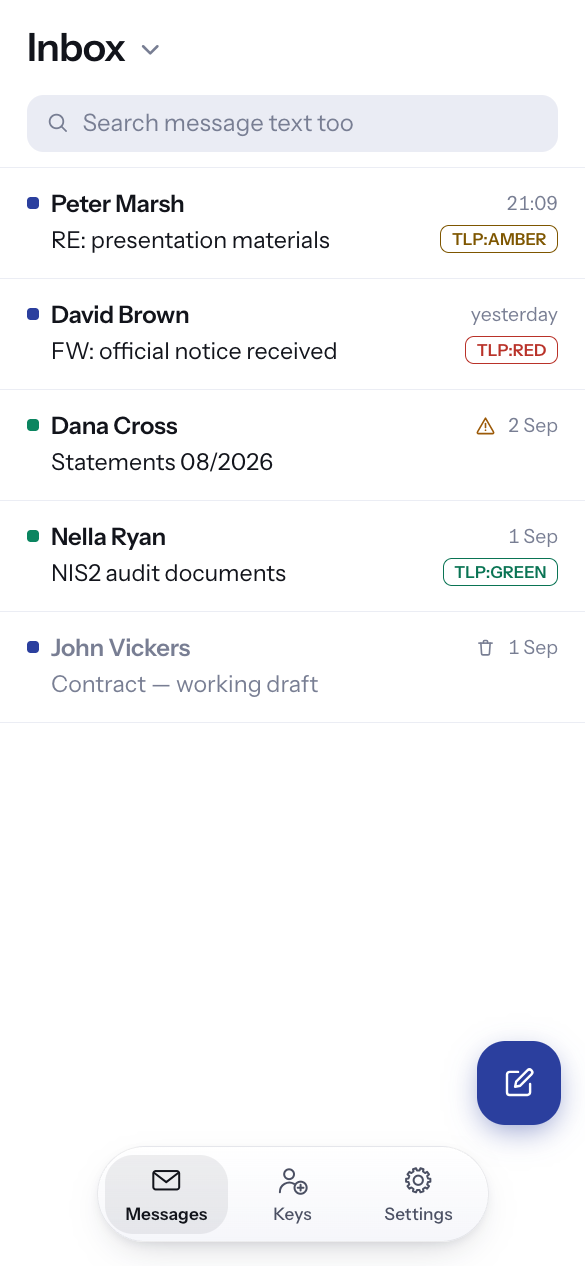
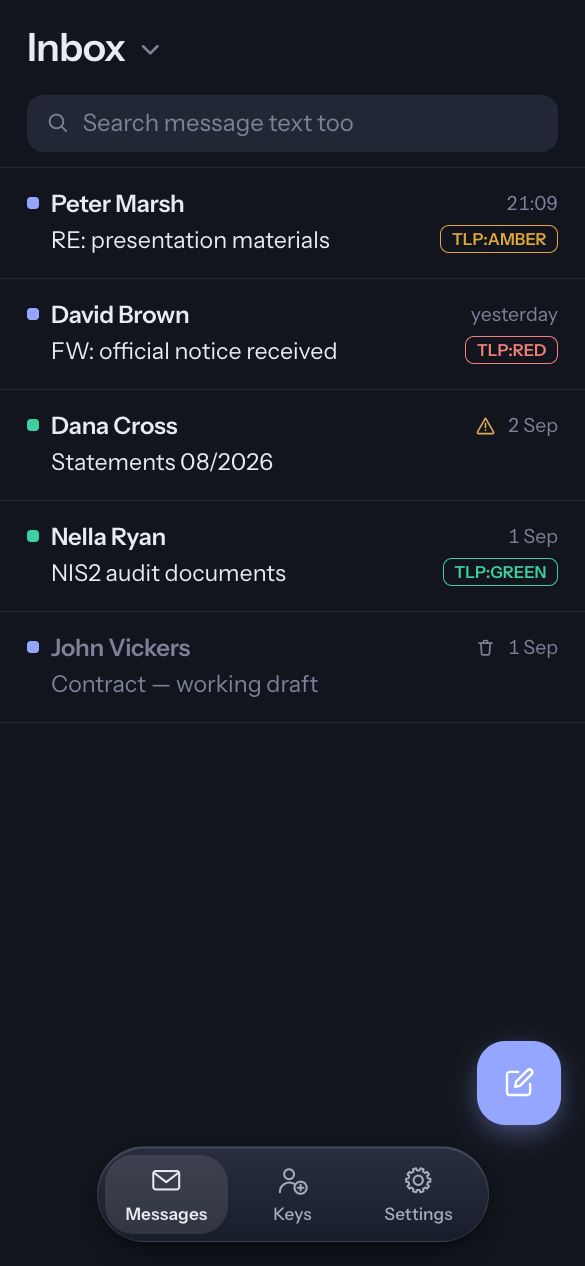
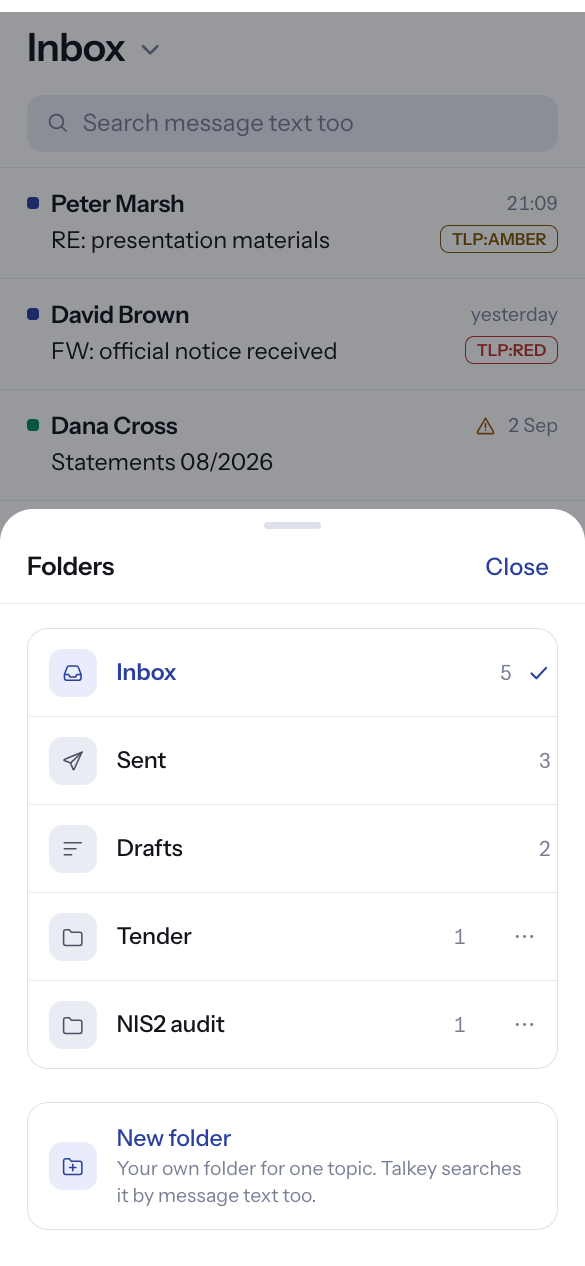
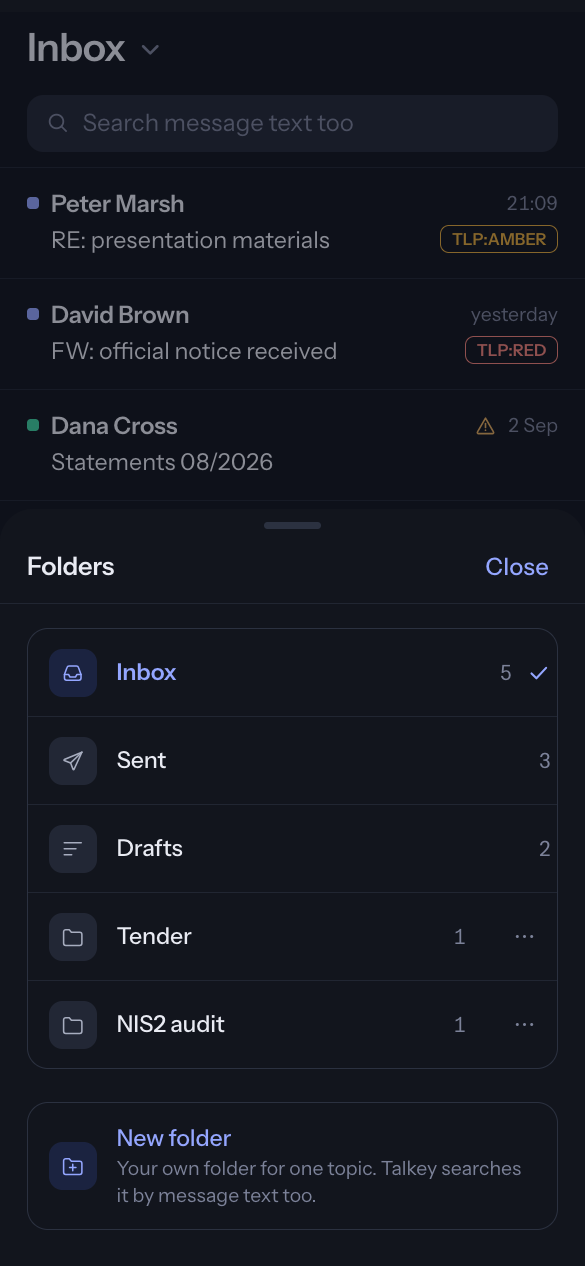
- The main folders are Inbox, Sent and Drafts. Create your own folder with New folder (on a phone after tapping the folder name at the top).
- Move at a message moves it to another folder. Rename or delete a folder with the “…” button – its messages return to the main folder.
- Search looks in the sender, the subject and the message text (decrypted only on your device). With a search term entered you can choose to search in all folders. Messages restricted by the sender are not searched by text, so that no opening is used up.
- The bin at a message deletes it from this device. For your own sent message with remote destruction allowed, you can also destroy it for all recipients.
Keys
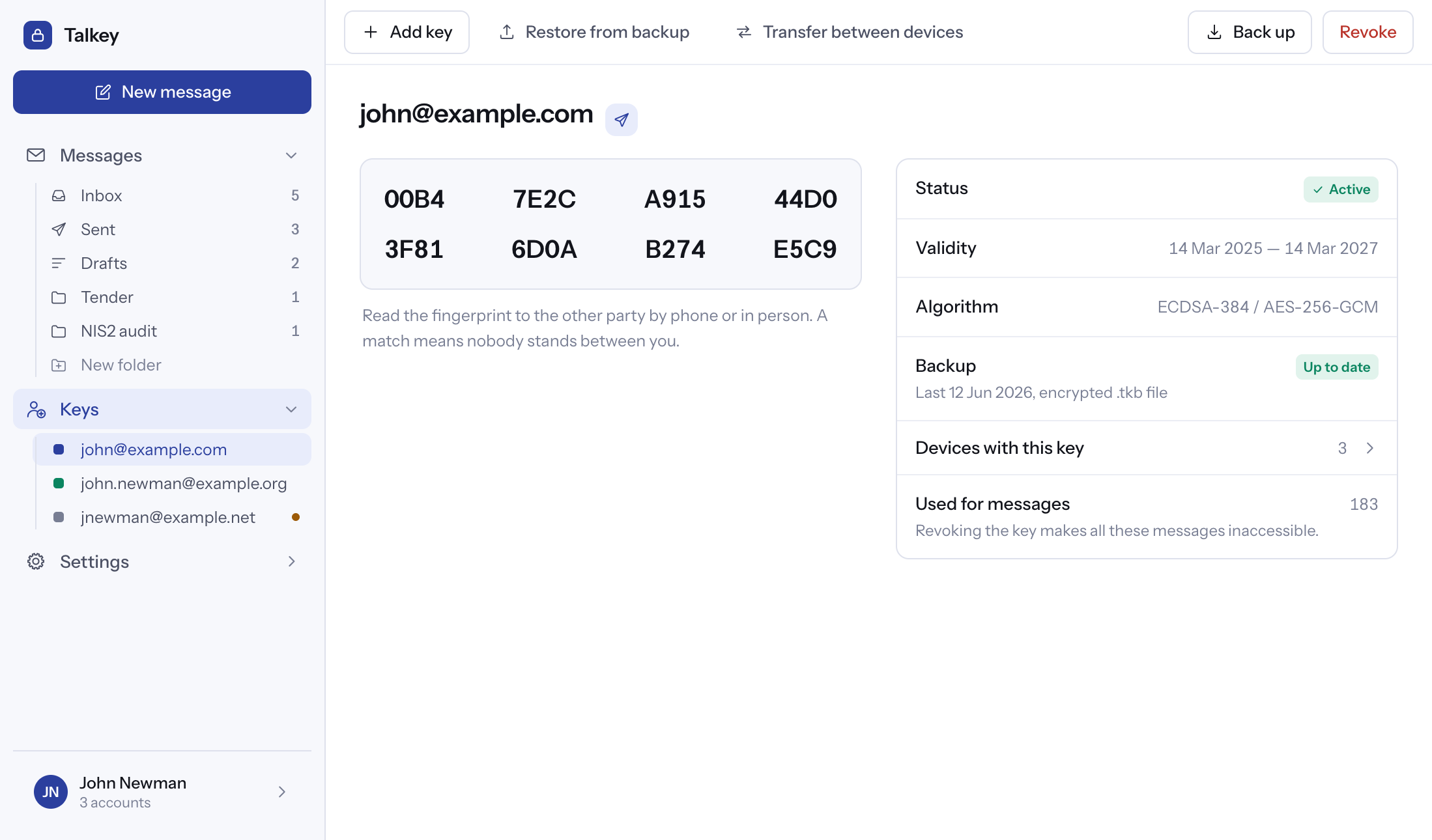
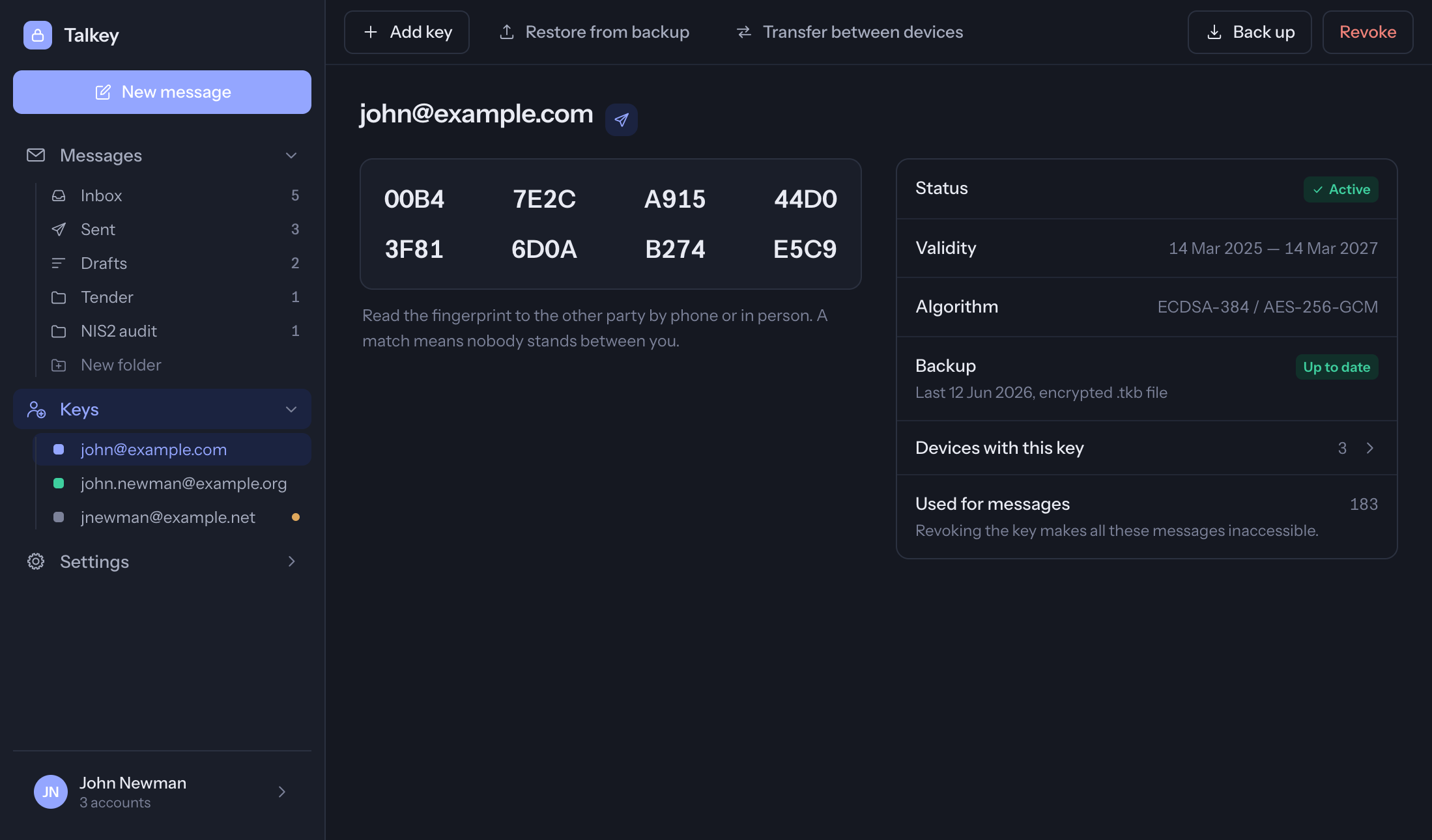
The Keys section shows the keys on this device – one for each e-mail address – with their status, validity and fingerprint.
Key fingerprint
The fingerprint is a unique identifier of a key (8 groups of 4 characters). To be sure you are encrypting for the right person, ask them to read their fingerprint to you from the Keys section of their app – by phone or in person, not by e-mail – and compare it with the fingerprint you see after tapping their address in a new message or the signature bar of their message.
Backing up a key
In the key detail tap Back up. This creates a .bac file protected by your Talkey password (the one valid at the time of the backup). Store it in a safe place outside the device – without a backup the key cannot be restored if you lose the device. If your company uses Talkey Enterprise Server, you can back up there too; the administrator can then restore the key, and therefore also read your messages.
Restoring from a backup
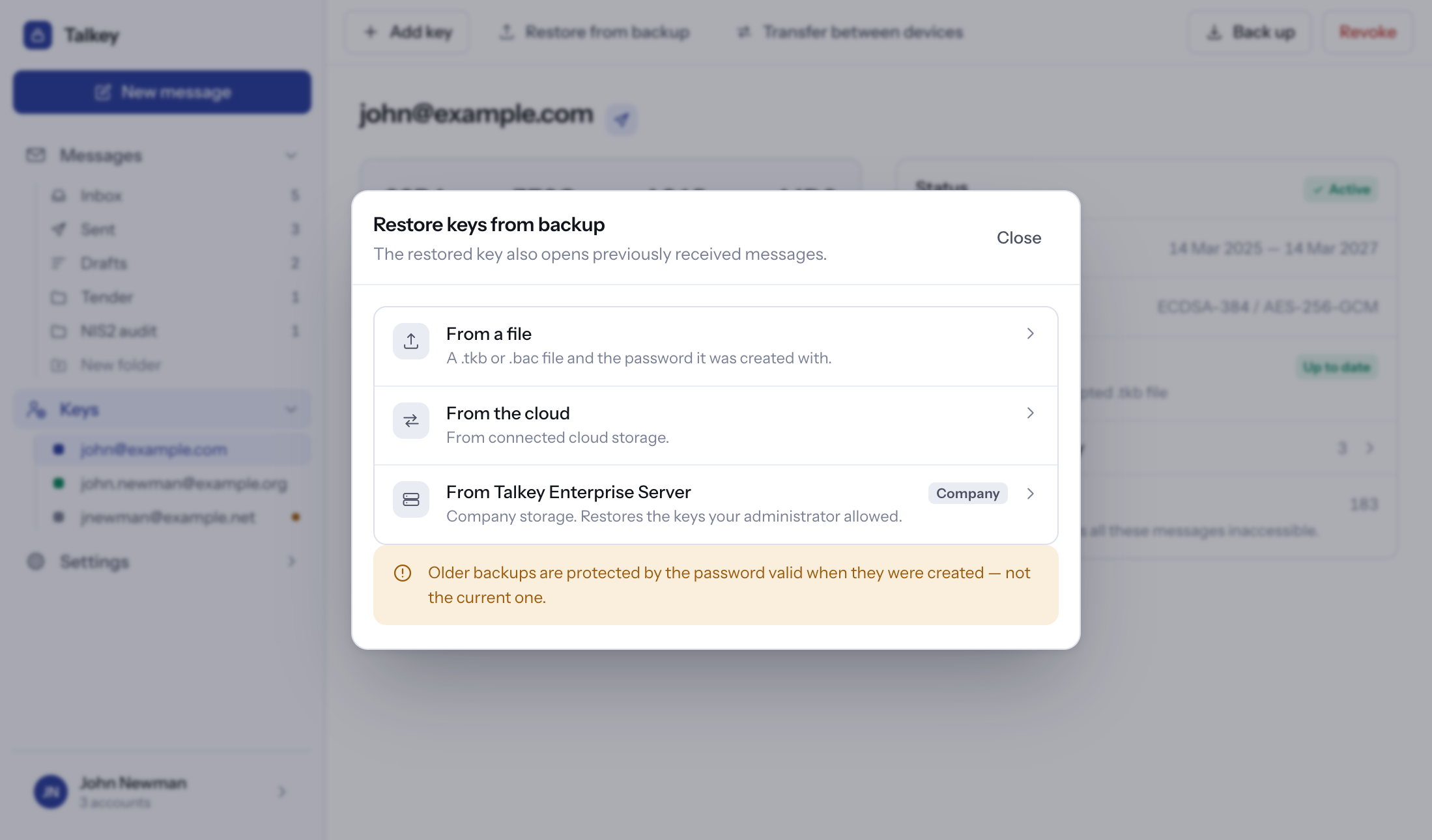
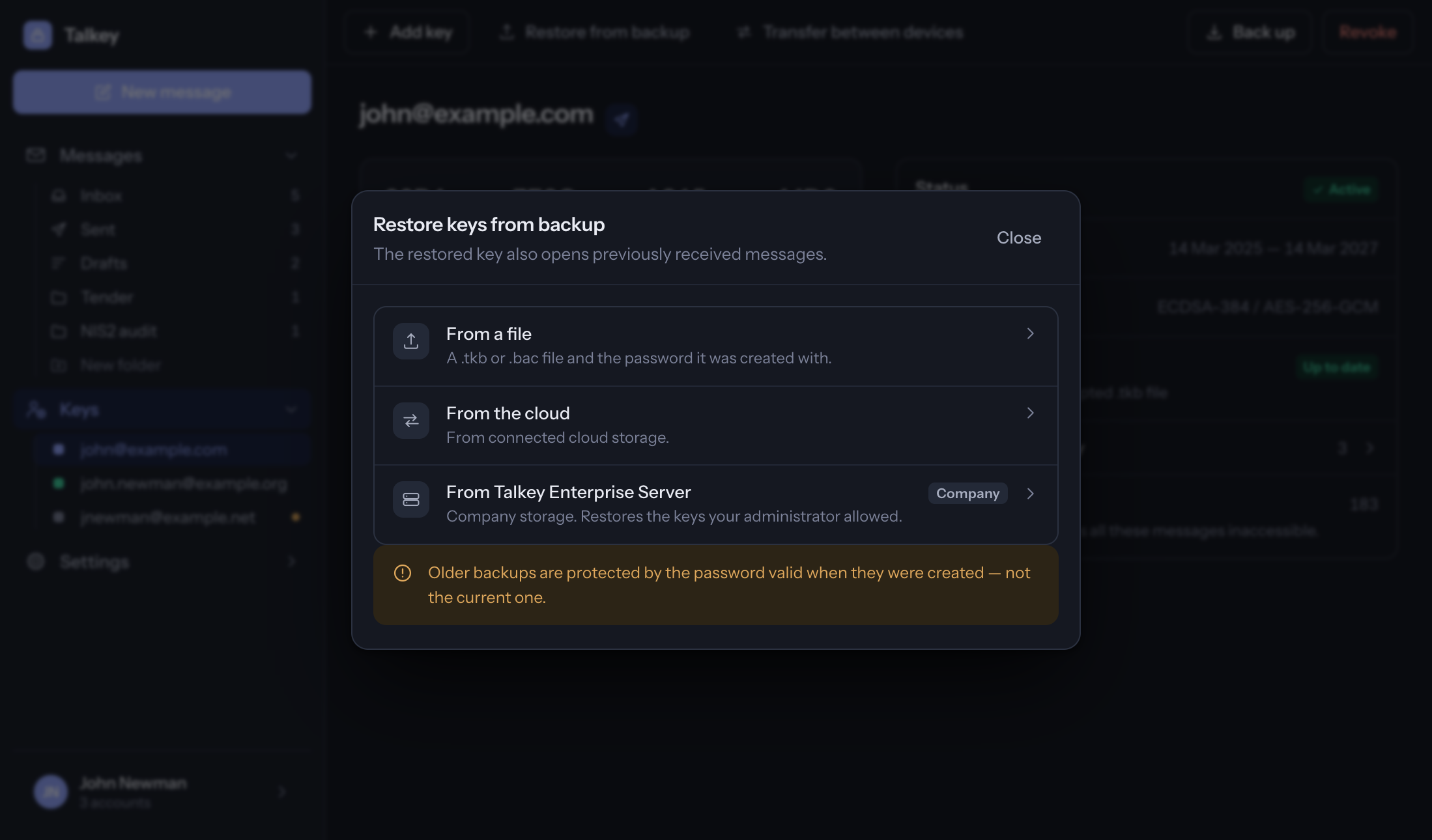
Keys → Restore from backup → From a file (or From Talkey Enterprise Server) → enter the backup password → Restore the keys. Note: older backups are protected by the password that was valid when they were created.
Transfer between devices
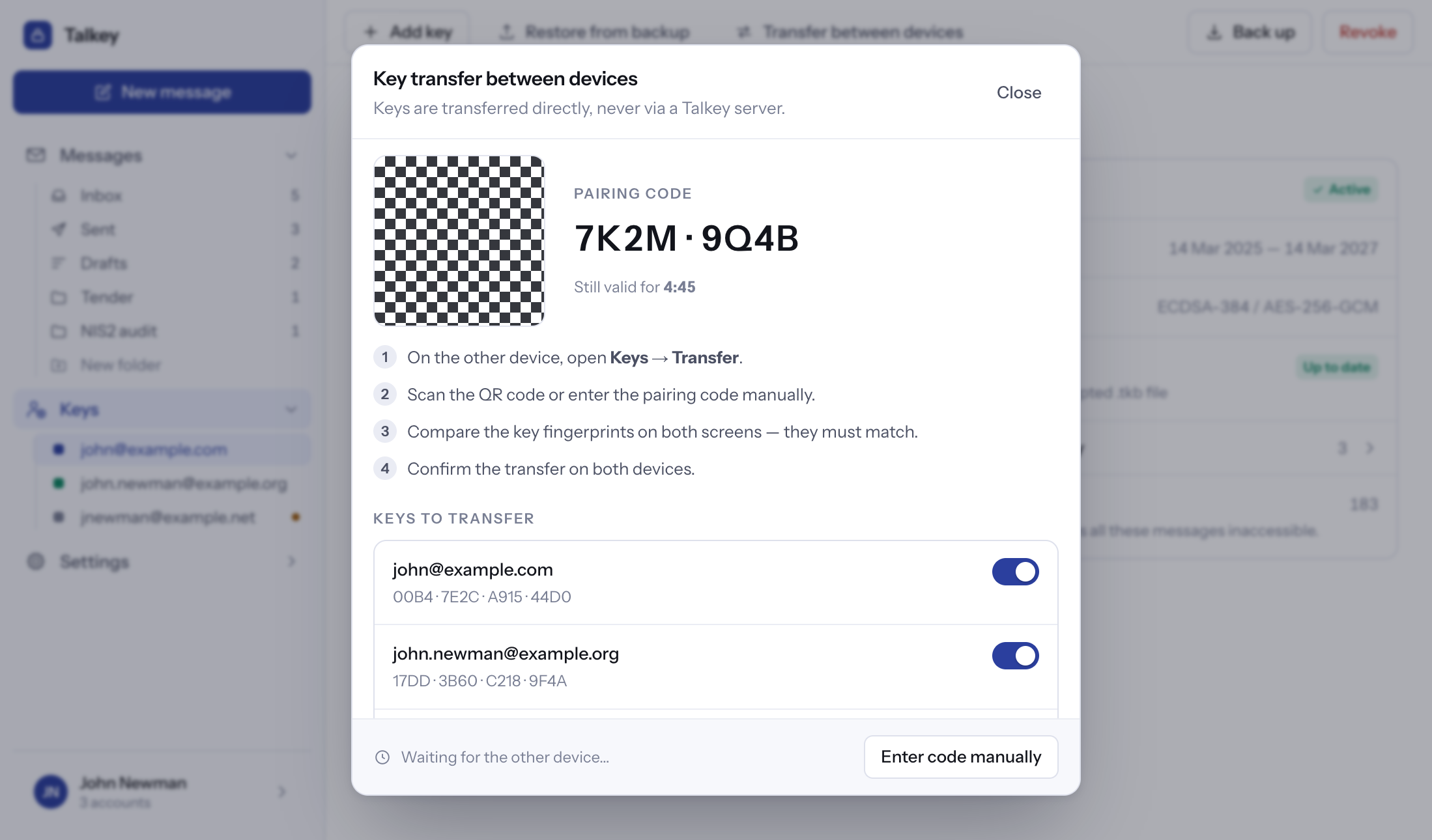
- On the new device: Keys → Transfer between devices → Receive a key from another device (on the first launch the option I already have Talkey on another device), enter the address of the key and tap Request transfer.
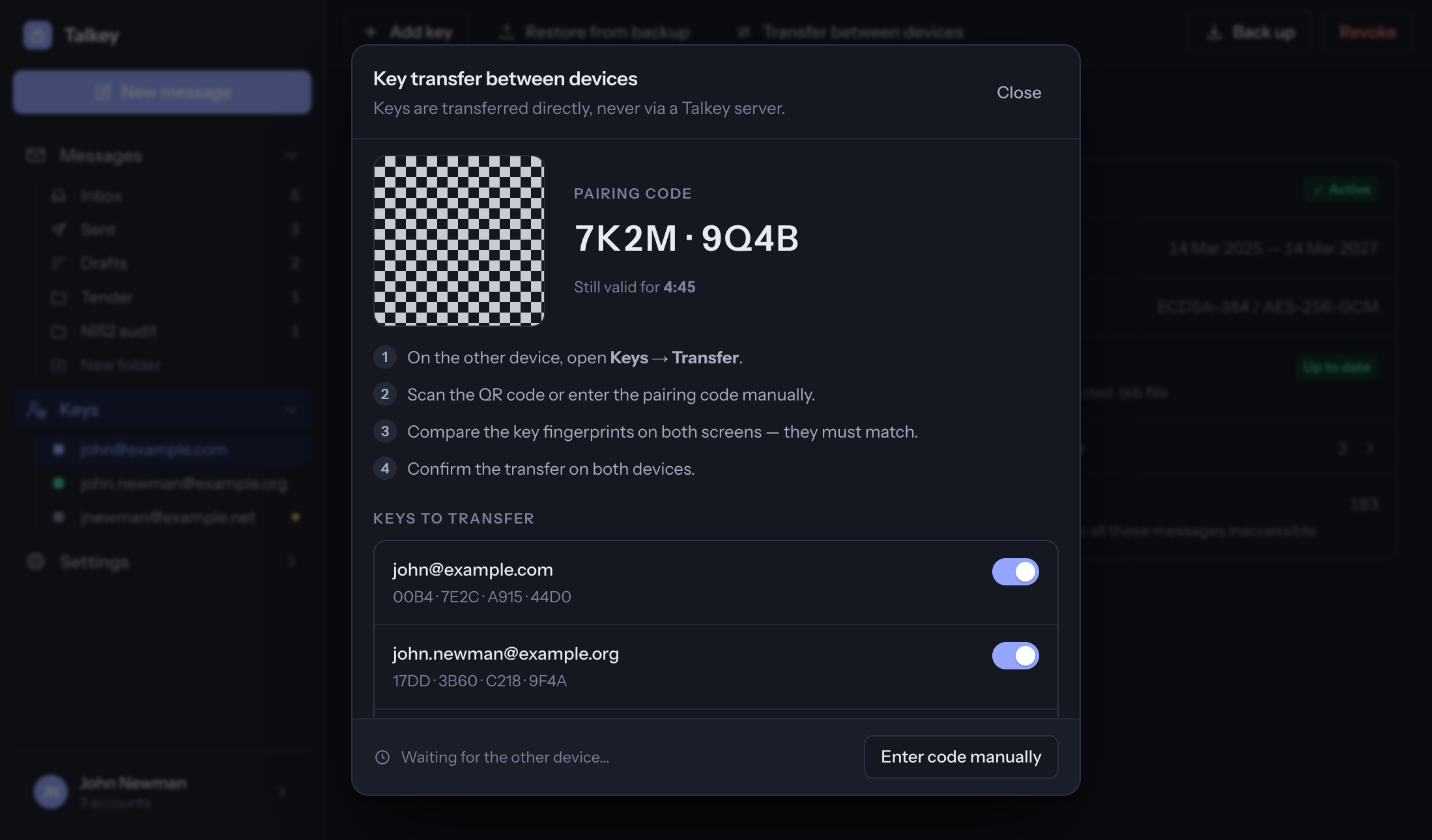
- On the device with the key: Keys → Transfer between devices → Hand the key over to another device. A code appears; it is valid for 15 minutes.
- On the new device type the code into Code from the other device and confirm.
The key travels through the Talkey server encrypted with this code. Do not give the code to anyone.
Another key, removing and revoking
- Add key – a key for another e-mail address.
- Remove/revoke – remove the key from this device only, or revoke it completely (e.g. when a device is lost). Revoking cannot be undone and messages encrypted for this key can no longer be opened.
Mailboxes
Settings → Accounts shows your mailboxes and what sends from them. Tap a mailbox to change the sending method, the servers or the sender name; Add account connects another one. Removing an account deletes only the mailbox connection – not the key and not the messages saved in Talkey.
Settings
- Accounts – mailboxes and how they send.
- Security – biometrics, sign-out after inactivity, changing the password, what closing the window does, TLP, the Share button in a new message, and factory reset (deletes all keys, accounts and messages – irreversibly without a backup).
- Appearance – light, dark or system theme, and language.
- Storage – how much space messages take by folder, the cache of decrypted files and the error log.
- License – license key, validity, renewing and changing the license.
- Support – setup guide, key transfer, this help and Report a problem (sends the error log, without any message content).
FAQ
Why is the Inbox empty?
Talkey does not download your mail. Messages appear in Talkey once you open the Talkey.mtm attachment from your mail.
I forgot my Talkey password.
The password cannot be recovered – only your device knows it. If you have a key backup with a known password, restore the key from it: after five wrong passwords Talkey deletes the keys from the device, and on the next launch you choose I have a key backup in the wizard. Without a backup you need to create a new key, and older messages stay unreadable.
I have a new phone or computer.
Install Talkey and in the wizard choose I already have Talkey on another device (transfer with a code) or I have a key backup (restore from a .bac file).
The recipient doesn't have Talkey.
Invite them – see Recipients without a key. They will read the message after installing Talkey and activating the key.
The Talkey.mtm attachment opens in a different app.
On Windows: right-click the file → Open with → Choose another app → Talkey → Always use this app. On Mac: in Finder Get Info (⌘I) → Open with → Talkey → Change All…
Didn't find an answer? Contact us.